

Blog
How To
How to Cancel a Shopify Order: Step-by-Step Guide
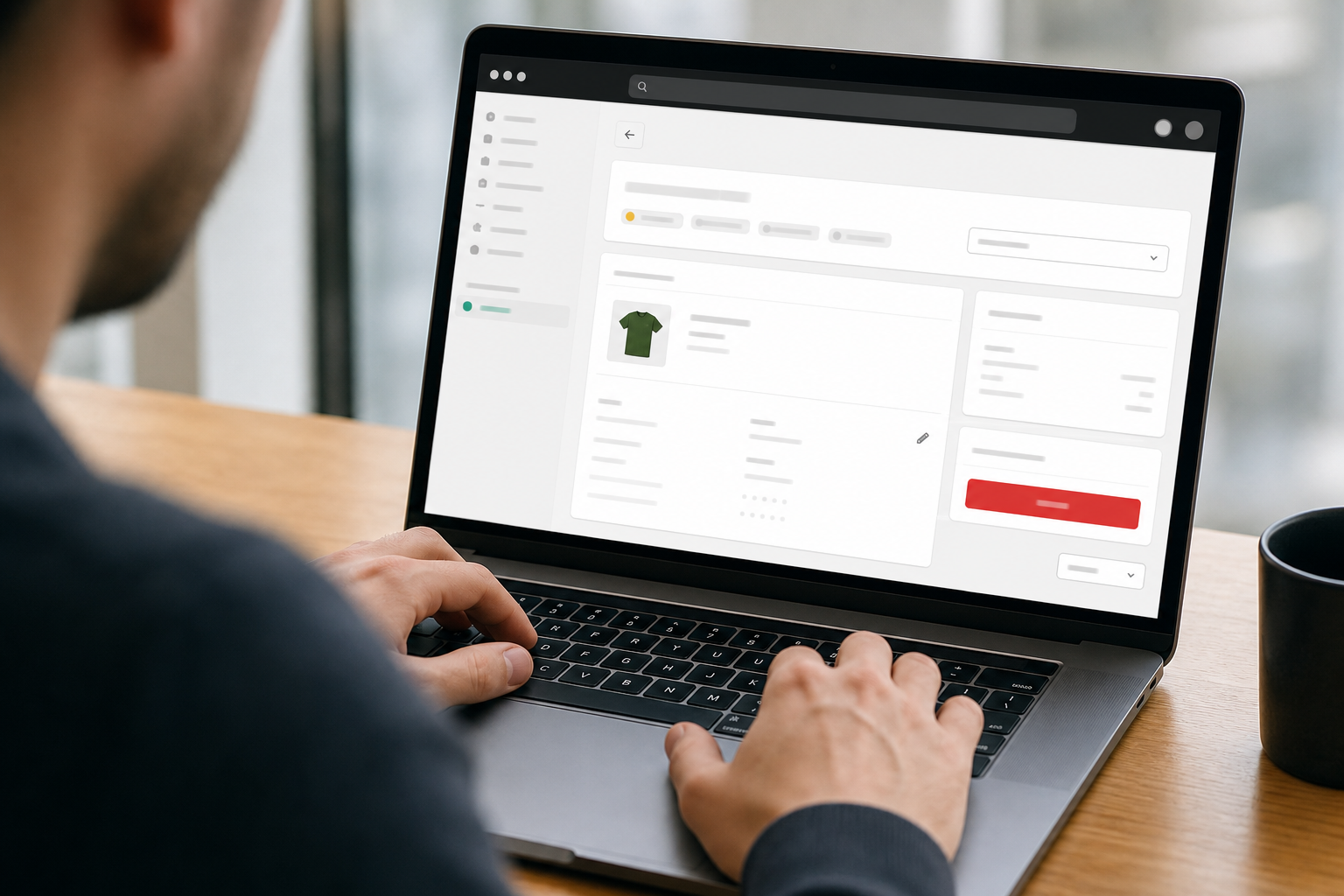
Order cancellations happen to every Shopify merchant. A customer changes their mind, a product goes out of stock, or a payment flags as suspicious — and you need to act fast.
Knowing exactly how to cancel a Shopify order keeps your inventory accurate, protects your refund reputation, and reduces support tickets. Get the steps wrong and you risk double-refunding, leaving stock unreturned, or sending the wrong email to a customer.
This guide walks you through every step: from what you need before you start, to confirming the cancellation worked. Each section is built to be followed in order.
Prerequisites: Three Things to Check Before You Cancel
Cancelling a Shopify order takes under two minutes once you are inside the admin. But if you skip these checks first, you may trigger a refund you did not intend, miss a restock, or attempt to cancel an order that Shopify will not allow you to cancel.
Run through this list before you open the order. It will save you a follow-up support conversation.
- Fulfillment status: Only orders with an 'Unfulfilled' or 'Partially Fulfilled' status can be cancelled directly. Fulfilled orders require a return workflow instead.
- Payment status: Confirm whether the order has been paid. If payment was captured, a refund must be issued alongside the cancellation.
- Inventory tracking: Decide in advance whether you want Shopify to restock the cancelled items automatically.
- Third-party apps: If you use a fulfillment app (e.g. ShipBob, Fulfillment by Amazon), cancel the fulfillment inside that app first — otherwise the order may still ship.
- Customer communication: Decide whether you want Shopify to send a cancellation notification email to the customer.
Step 1: Locate the Order in Shopify Admin
Purpose: Navigate to the correct order so you are working on the right record before making any changes.
This step takes roughly 30 seconds. Use the order number from your confirmation email or support ticket to search directly rather than scrolling through your orders list.
- Log in to your Shopify admin at yourstorename.myshopify.com/admin.
- Click 'Orders' in the left-hand sidebar.
- Use the search bar at the top of the orders list and type the order number (e.g. #1042).
- Click the order row to open the order detail page.
- Confirm the customer name, order total, and fulfillment status match what you expect before proceeding.
Step 2: Open the Cancel Order Dialog
Purpose: Access Shopify's built-in cancellation flow, which handles refunds, restocking, and notifications in one place.
The cancel option is only visible on orders that are eligible. If you do not see it, return to the prerequisites section and re-check fulfillment status.
Common mistake to avoid: Do not issue a manual refund from the payment section before cancelling. If you cancel afterward, Shopify may attempt a second refund on the same order.
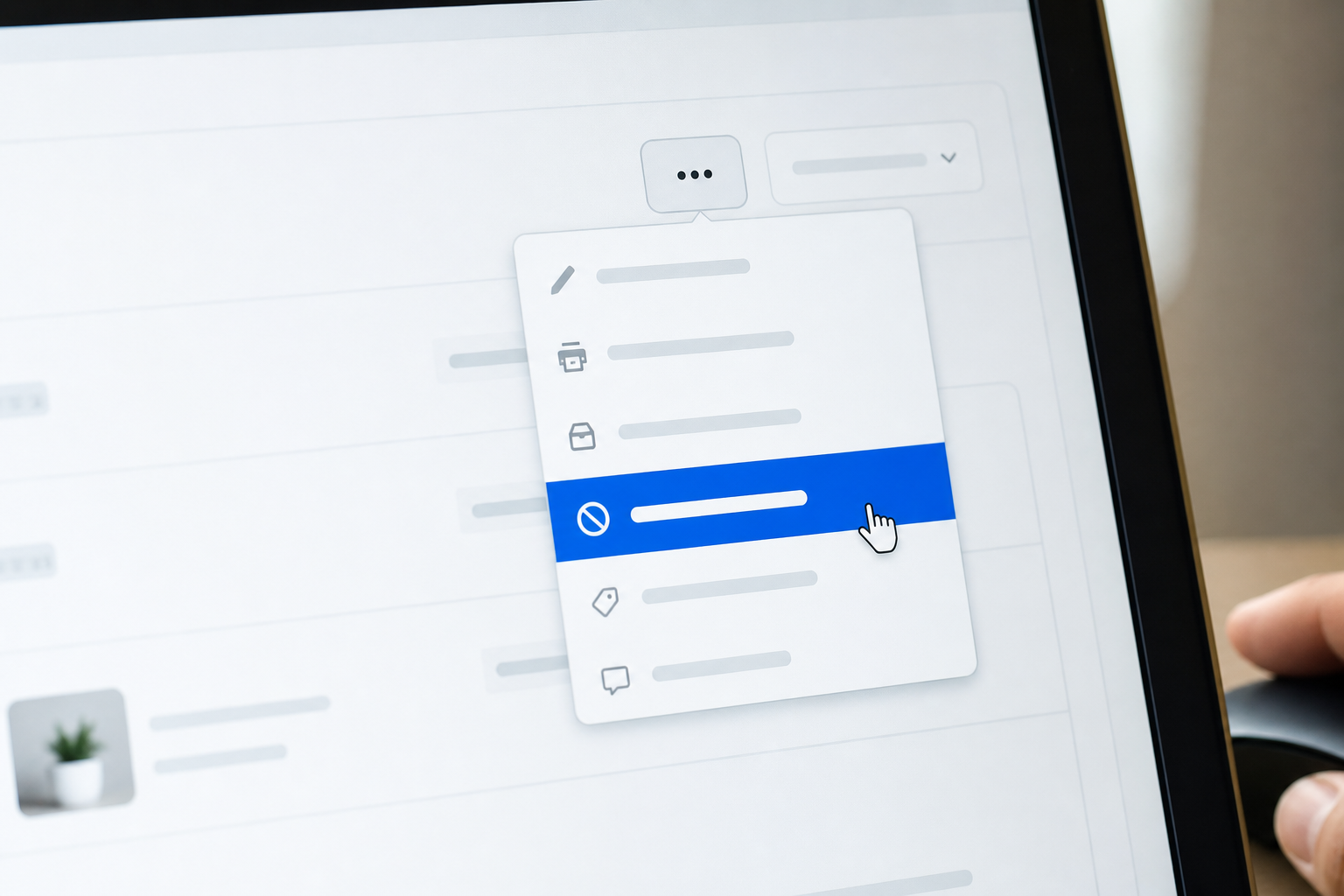
- On the order detail page, scroll to the top-right area and click the 'More actions' dropdown button.
- Select 'Cancel order' from the dropdown menu.
- A modal dialog will appear with refund, restock, and notification options.
- If 'Cancel order' is greyed out or missing, the order is likely already fulfilled — stop here and use the Returns workflow instead.
- Do not close this dialog until all three options (refund, restock, notification) have been configured in the next steps.
Step 3: Configure Four Options Inside the Cancellation Dialog
Purpose: Set refund amount, restock preference, cancellation reason, and customer notification before committing the cancellation.
Each setting inside this dialog affects inventory counts, payment records, and customer experience. Take 60 seconds to review each one. Estimated total time for this step: 1–2 minutes.
- Refund amount: Shopify pre-fills the full order total. Adjust this to a partial amount only if you have agreed a partial refund with the customer in advance.
- Restock inventory: Check this box if you want the cancelled items added back to your available inventory. Leave it unchecked for items that are damaged or non-resalable.
- Reason for cancellation: Select from Shopify's dropdown (Customer changed/mind, Fraud, Inventory error, Staff error, Other). This is internal only and not shown to the customer.
- Send notification email: Toggle this on to send Shopify's default cancellation email to the customer. Review the message — it will include the order number and refund details.
- Currency format note: Shopify displays refund amounts in your store's configured currency. If your currency formatting in Shopify is set incorrectly, the refund amount shown to the customer may display with the wrong symbol or decimal separator — verify this in Settings > Store details before processing.
Step 4: Confirm the Cancellation and Verify It Worked
Purpose: Submit the cancellation and confirm that Shopify has updated the order status, payment record, and inventory correctly.
After clicking 'Cancel order', Shopify processes the refund through the original payment method. Refund settlement times vary by payment gateway — Shopify Payments typically settles within 5–10 business days.
Success criterion: The order status should now read 'Cancelled' and the payment status should show 'Refunded' (or 'Partially Refunded' if you issued a partial refund). Inventory counts should reflect the restock if you enabled that option.
- Click the 'Cancel order' button at the bottom of the dialog to submit.
- Wait for the page to reload — the order detail page will now display a red 'Cancelled' badge at the top.
- Check the Timeline section at the bottom of the order page to confirm the cancellation event and refund amount are logged.
- Navigate to Products > Inventory to confirm the restocked quantity appears if you selected that option.
- If the customer notification was enabled, ask the customer to check their inbox (including spam) within a few minutes.
- If the cancellation did not go through, check for an error message in the dialog — common causes include an active third-party fulfillment app or a payment gateway timeout.
| Scenario | Correct Shopify Workflow | Refund Possible? | Inventory Restocked? |
|---|---|---|---|
| Order is Unfulfilled | Cancel Order via More Actions | Yes — full or partial | Yes — optional toggle |
| Order is Partially Fulfilled | Cancel Order (unfulfilled items only) | Yes — for unfulfilled portion | Yes — for uncancelled items |
| Order is Fulfilled / Shipped | Create a Return instead | Yes — after return received | Yes — after return processed |
| Order has a Third-Party Fulfillment App | Cancel in the app first, then cancel in Shopify | Yes | Depends on app settings |
| Order flagged as Fraud | Cancel Order, select Fraud as reason | Yes — refund recommended | Yes — optional toggle |
Frequently Asked Questions
-
How to cancel a Shopify order after it has been placed?
Go to Shopify Admin > Orders, open the order, click 'More actions', and select 'Cancel order'. This works for unfulfilled or partially fulfilled orders. You can issue a refund and restock inventory at the same time. If the order has already shipped, you need to use the Returns workflow instead of the cancellation flow. -
Can I cancel a Shopify order that has already been fulfilled?
No. Shopify does not allow direct cancellation of a fulfilled order. Once an order is marked as fulfilled, you must create a return to process a refund and recover inventory. Navigate to the order, click 'Return', select the items, and choose your refund and restock preferences from there. -
How to cancel a Shopify subscription?
To cancel your Shopify store subscription, go to Settings > Plan in your Shopify admin, scroll to the bottom, and click 'Cancel subscription'. Shopify will ask for a cancellation reason and give you options to pause instead. Note that cancelling deactivates your storefront and removes customer-facing access to your store immediately. -
Does cancelling a Shopify order automatically refund the customer?
Yes, if you select the refund option inside the cancellation dialog. Shopify pre-fills the full order amount as the default refund. You can adjust this to a partial amount. The refund is processed back to the customer's original payment method and typically settles within 5 to 10 business days depending on the payment gateway. -
What happens to inventory when I cancel a Shopify order?
Shopify gives you a checkbox inside the cancellation dialog to restock the cancelled items automatically. If you check it, inventory levels update immediately. If you leave it unchecked, the stock is not returned — useful for items that are damaged or were custom-made. Always verify the inventory count in Products > Inventory after cancellation. -
How do I fix currency formatting in Shopify after a cancellation?
Currency formatting in Shopify is configured under Settings > Store details > Store currency. If the currency format appears incorrectly on refund emails or order summaries, update the HTML and email currency format fields there. Changes apply to future transactions and notifications; past orders will retain the format used at the time of the original transaction. -
Can I cancel a Shopify order from the mobile app?
Yes. Open the Shopify mobile app, tap Orders, select the order you want to cancel, and tap the three-dot menu in the top-right corner. Select 'Cancel order' from the menu. The same options for refund amount, restocking, and customer notification are available on mobile as in the desktop admin.